How to stop false positives in website change monitoring
Why website change monitoring produces false positives (timestamps, counters, reordered lists) and how to stop them with rules, ignore lines and selectors.
 Alexandra SwanCustomer Operations Lead
The short answer
Most false positives in website change monitoring come from parts of a page that change on every visit: timestamps, view and vote counters, rotating banners and reordered lists. To stop them, describe the change you care about in plain English so everything else is held back, list the lines that always move as ignored, monitor one element when the page is busy, and point the check at the specific page rather than a listing or search result.
Where false positives come from
A false positive is a real change, just not one you care about. The page did differ between two checks; the difference was in something that moves on its own.
- Relative timestamps: '3 minutes ago' becomes '5 minutes ago' on every visit.
- Counters: views, votes, comments, 'people looking at this right now', items left in stock.
- Reordering: lists sorted by popularity or recency reshuffle without anything new arriving.
- Rotating content: banners, testimonials, 'you might also like' panels and ads.
- Boilerplate: a copyright year, a cookie notice, a build number in the footer.
The Hacker News front page shows most of these at once. Between two of our checks about a minute and a half apart, 25 lines changed: vote and comment counts went up and a few stories swapped places. Nothing new reached the front page.
Describe the change you care about
The most effective fix is a rule written in plain English. Each time a check finds a difference, the rule is read against what was removed and what was added, and the alert goes out only if the change matches.
On the Hacker News front page, the rule 'tell me when a new story reaches the front page' held that change back and recorded why:
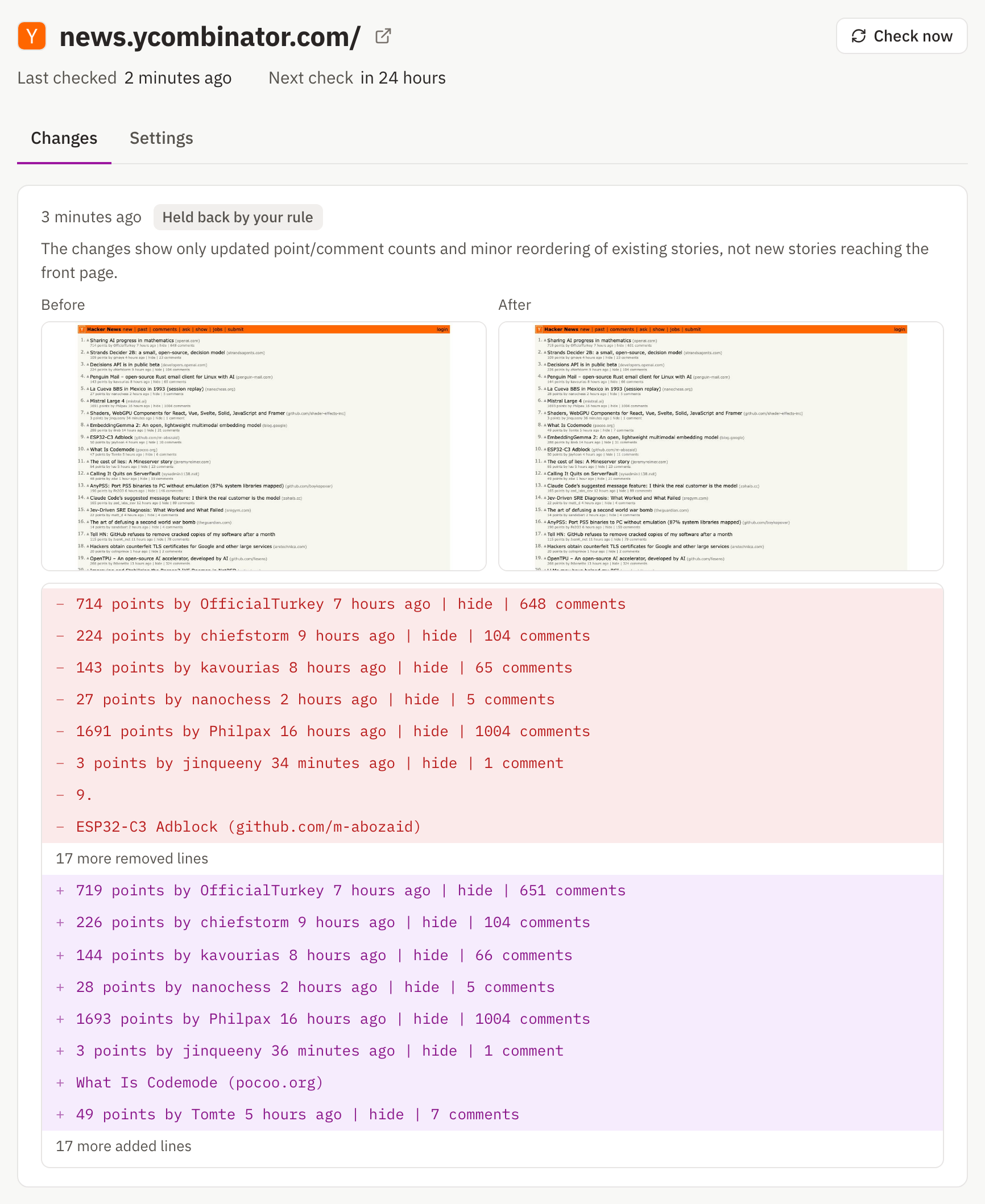
Held-back changes stay in the page's history with their reason, so you can confirm the rule filters what you meant instead of trusting it blind. If a rule cannot be checked for any reason, the alert is sent anyway and marked as such: a missed alert is worse than an extra one.
Rules work on every plan.
Ignore the lines that always move
Some noise is so regular that it is better removed before the comparison happens. List those lines once in the page's settings and every check skips them.
- A plain phrase, such as 'people are viewing this', ignores any line that contains it, whatever the capitalisation.
- A pattern between slashes is a regular expression. /\d+ points? by/ ignores Hacker News' points-and-comments line, and /^\d+\.$/ ignores the rank numbers.
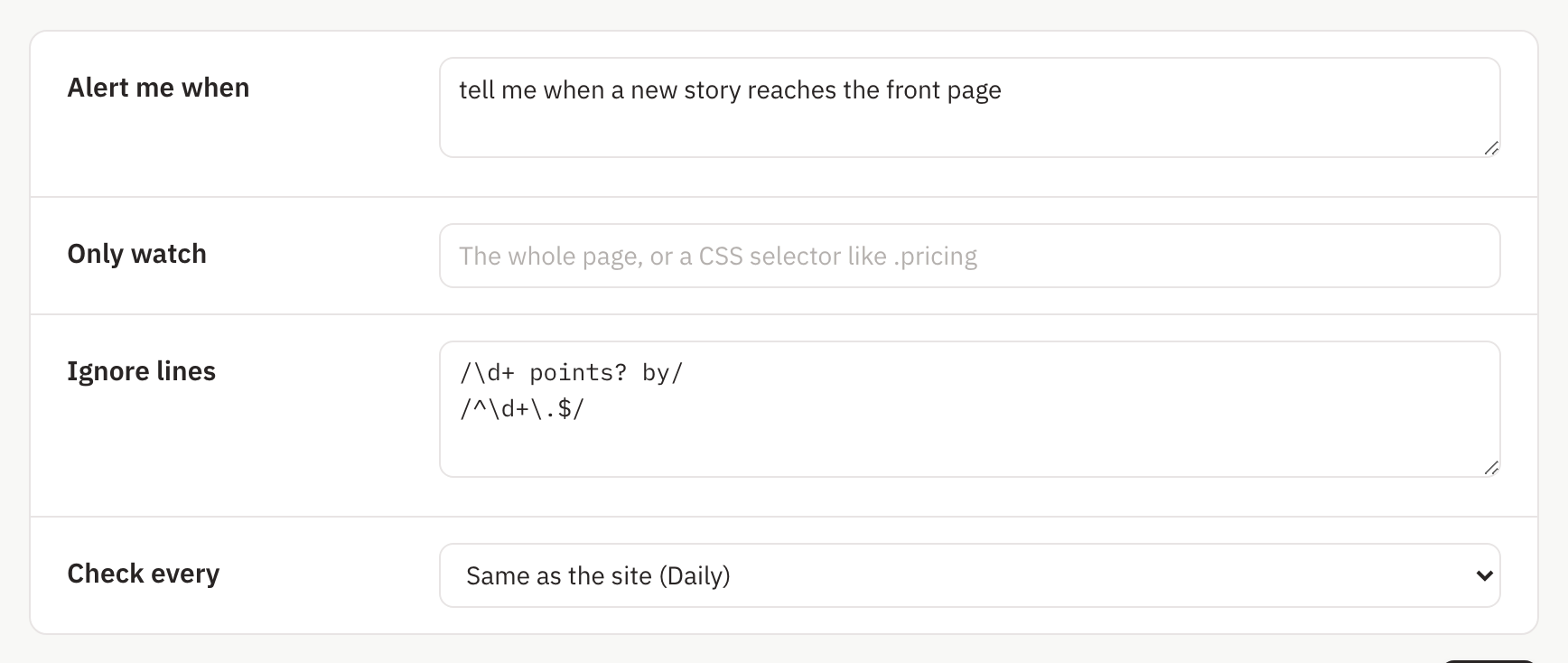
With those two lines ignored, the text the check stores for the page is just the story titles, so a change can only come from a title appearing, disappearing or moving.
An ignore line removes the whole line it matches. When a line mixes a timestamp with something you do care about, leave it in and let the rule decide.
Monitor one element on a busy page
When the part you care about is a small piece of a busy page, such as a price, a status line or a table, point a CSS selector at it, for example .price or #status. Everything outside that element stops counting. On Website Change Tracker, selectors start on the Starter plan.
If a redesign removes the element, the check reports a failure instead of quietly comparing an empty space, so you find out the selector needs updating.
For prices in particular, how to track price changes on any website covers which part of the page to monitor.
Choose the right page and interval
The page you point a check at decides how much noise it sees.
- Monitor the specific page, not a search result or a category page that reorders on every load.
- Avoid pages personalised for each visitor, which never show two checks the same thing.
- Match the interval to the page. A daily check on a policy page catches the same changes as a 5-minute one, with far fewer chances to trip over a page caught halfway through loading.
- Treat listing pages with care: getting notified when a website is updated shows how a rule handles a list that reorders on every check.
Changing these settings will not set off an alert
Adding a rule, an ignore line or a selector changes what the check compares, which would normally look like a change to the page. The next check notices the new settings and takes a fresh baseline instead, so you never get an alert about your own edit.
That makes it safe to tune a page until its website change alerts only fire for changes you would act on.