How to get a Slack notification when a website changes
Send website change alerts to a Slack channel: create an incoming webhook, add it as a destination, and get the removed and added lines posted on every change.
 Alexandra SwanCustomer Operations Lead
The short answer
To get a Slack notification when a website changes, create an incoming webhook in Slack for the channel the alerts should land in, copy its URL, and add it as a Slack destination on the site you monitor. From then on, every change alert posts to that channel with the lines that were removed, the lines that replaced them, and a link to the full change.
Create an incoming webhook in Slack
An incoming webhook is a private URL that posts whatever is sent to it into one Slack channel. You create it once, in a small Slack app that belongs to your workspace.
- Open your app settings at api.slack.com/apps and create a new app for your workspace.
- Select Incoming Webhooks and switch Activate Incoming Webhooks on.
- Click Add New Webhook to Workspace, pick the channel the alerts should go to, and select Authorize.
- Copy the URL that appears under Webhook URLs for Your Workspace. It starts with https://hooks.slack.com/services/.
On Slack's free plan a workspace can add up to 10 apps, and a workspace owner can turn on app approval, in which case an admin has to approve the app before it can post.
Add the webhook as a destination
In Website Change Tracker, alerts go to the destinations on each site, so add the webhook to the site whose pages should post to Slack.
- Open the site and go to its Alerts tab.
- Under Add a destination, choose Slack.
- Paste the webhook URL and select Add Slack.
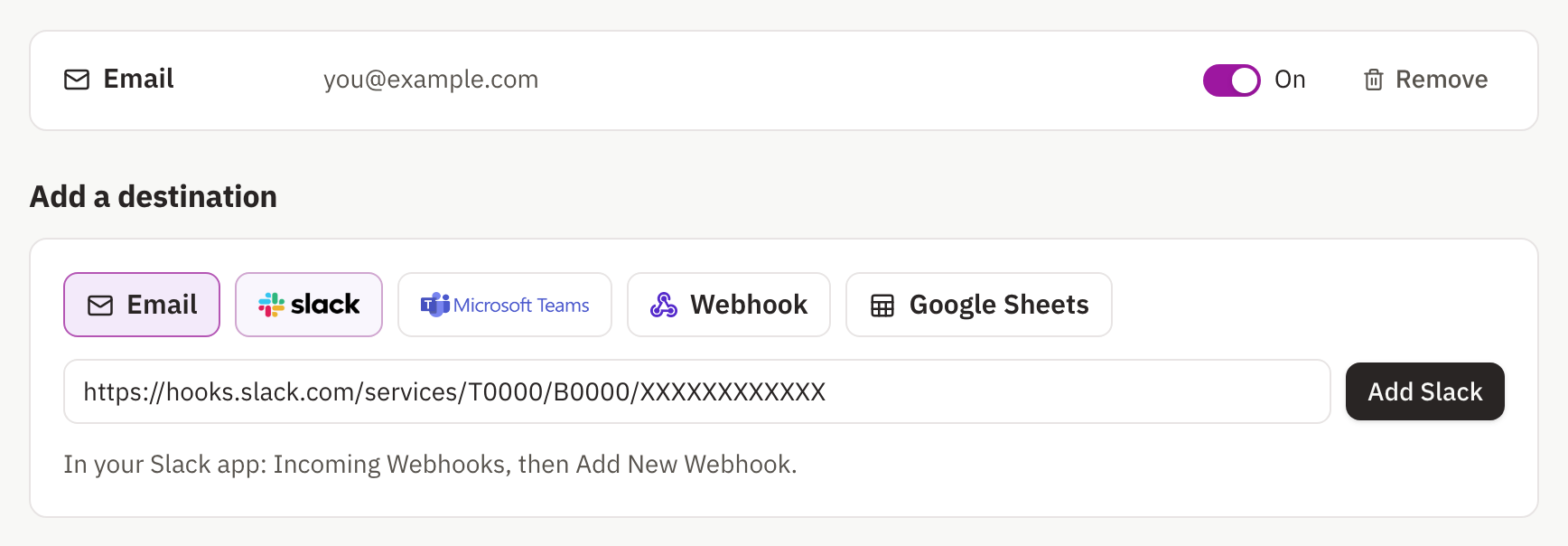
Every alert for the site now goes to each destination on it, so you can keep email and add Slack alongside it. Slack destinations start on the Starter plan; email alerts come with every plan.
Each webhook URL posts to a single channel. To send the same alerts to two channels, create a webhook for each and add both.
What every alert contains, and how email alerts work, is covered in website change alerts.
What the Slack notification looks like when a website changes
Each alert arrives as a plain message from your Slack app. It names the page that changed, lists up to 12 lines that were removed, each marked with a minus, and up to 12 lines that replaced them, each marked with a plus, then links to the full change in your dashboard.
That is enough to decide from the channel whether the change needs anyone, without opening the page first. Longer changes say that more lines changed, and the link shows all of them with before and after screenshots.
Send alerts to the channel where the work happens
The channel matters more than the setup. An alert in a busy general channel scrolls away before anyone reads it; the same alert in a channel that exists for the job gets picked up.
- Make a channel per job, such as #competitor-pricing for competitor price monitoring or #policy-changes, and invite the people who act on it.
- Keep alerts out of channels people mute. If nobody would act on the alert, it does not need to be in Slack.
- Add a plain-English rule to each page, such as 'alert me when a plan price changes', so the channel only hears about changes that matter. Changes the rule holds back still appear in the page's history.
Keep the webhook URL private
Anyone who has the URL can post into your channel, so treat it like a password. Slack's own documentation notes that the URL contains a secret and that Slack actively looks for leaked webhook secrets and revokes them.
If a URL does leak, remove that webhook in your Slack app's settings and create a new one, then replace the destination in Website Change Tracker.
Sending alerts to other tools
For anything that is not Slack, use a webhook destination instead. It sends each change as a JSON POST with the page, the removed and added lines, the rule's verdict and a link to the change, which automation tools and your own services can route anywhere. Webhook destinations also start on the Starter plan.